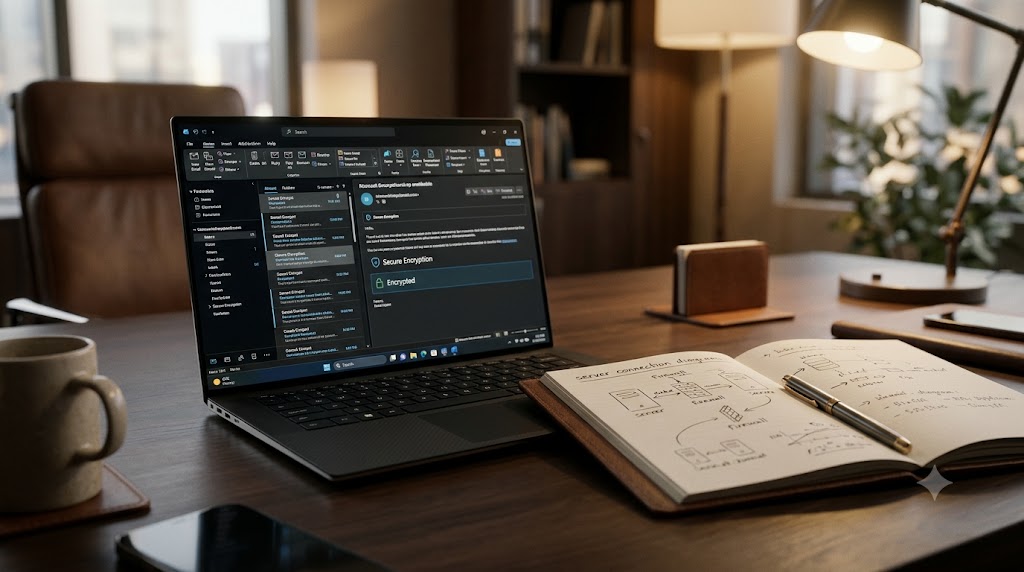
To configure your cPanel business email in Microsoft Outlook securely, choose IMAP as the account type, enter your full email address (e.g., info@yourdomain.com) as both username and email, set the Incoming Server (mail.yourdomain.com) to Port 993 (SSL/TLS), and the Outgoing SMTP Server to Port 465 (SSL/TLS). Always verify that “My outgoing server (SMTP) requires authentication” is checked in Outgoing Server settings.
Jab aap kisi client, corporate vendor ya enterprise partner ko official communication bhejte hain, toh ek free @gmail.com ya @yahoo.com address aapki brand credibility ko instantly kamzor kar deta hai. Professional custom domain email (jaise name@yourdomain.com) modern business ka non-negotiable benchmark hai.
Lekin sirf cPanel webmail (Roundcube) par rely karna daily workflow ke liye convenient nahi hota. Professional teams apne emails ko Microsoft Outlook (Outlook 365, Outlook 2021/2019) par manage karna chahti hain jahan offline access, fast calendar synchronization aur native desktop notifications milte hain.
Is exhaustive guide me hum step-by-step dekhenge ki apne cPanel domain email ko Microsoft Outlook me manually kaise configure karein bina kisi SSL/TLS certificate ya SMTP authorization error ke.
Technical Architecture: IMAP vs. POP3 (Which Should You Choose?)
Outlook me configuration shuru karne se pehle, yeh decide karna mandatory hai ki aapka storage aur synchronization protocol kya hoga:
                  ┌───────────────────────────────┐
                  │    Incoming Server Protocol   │
                  └───────────────┬───────────────┘
                                  │
         ┌────────────────────────┴────────────────────────┐
         ▼                                                 ▼
   [IMAP Protocol]                                   [POP3 Protocol]
 ─────────────────────────                         ─────────────────────────
 • Cloud Two-Way Sync                              • One-Way Local Download
 • Mobile + Laptop Sync                            • Device-Locked Storage
 • Mail stays on Server                            • Mail wiped from Server
 • Recommended for Modern Teams                    • Only for Low Disk Hosting
| Technical Parameter | IMAP (Internet Message Access Protocol) | POP3 (Post Office Protocol v3) |
| Sync Behavior | Two-way sync (Laptop me delete kiya toh phone se bhi delete hoga) | One-way download (Local device me save ho kar server se delete ho sakta hai) |
| Multi-Device Usage | Perfect for mobile, tablet, desktop ek sath | Sirf single dedicated PC ke liye safe |
| Server Disk Impact | Server par space use hoti hai (NVMe mail hosting needed) | Server space save rehti hai |
| Standard Secure Port | Port 993 (SSL/TLS) | Port 995 (SSL/TLS) |
| Our Verdict | Highly Recommended | Outdated (Avoid unless server space is full) |
Pre-Requisites: Fetching Secure Mail Credentials from cPanel
Outlook open karne se pehle, cPanel dashboard se apne domain ke verified connection details note karein:
- Apne cPanel panel me login karein (
[yourdomain.com/cpanel](https://yourdomain.com/cpanel)). - Email Accounts icon par click karein.
- Apne target email address ke bagal me bane Connect Devices button par click karein.
- Blue box me di gayi Mail Client Manual Settings (Secure SSL/TLS Settings) ko copy karein.
Standard cPanel conventions yehi hote hain:
- Username: Aapka full email address (e.g.,
support@yourdomain.com). - Password: Jo password aapne cPanel me email create karte waqt diya tha.
- Incoming Server:
mail.yourdomain.com - Outgoing Server:
mail.yourdomain.com
Step-by-Step: Adding cPanel Email to Microsoft Outlook
Step 1: Launch Account Wizard
- Open Microsoft Outlook on your Windows or Mac PC.
- Click on the top-left menu: File > Add Account.
- Apna full professional email enter karein.
- Advanced Options par click karein aur tick mark karein: “Let me set up my account manually”.
- Click Connect.
Step 2: Select Protocol Type
- Setup screen par aapko alag-alag icons dikhenge (Google, Microsoft 365, IMAP, POP).
- Choose IMAP.
Step 3: Configure Incoming & Outgoing Ports (SSL/TLS)
Yeh step sabse crucial hai jahan 80% log galat port ya encryption choose karke connectivity errors face karte hain:
Incoming Mail Settings:
- Server:
mail.yourdomain.com(apna actual domain name use karein). - Port:
993 - Encryption method: Dropdown se SSL/TLS select karein.
- Require logon using Secure Password Authentication (SPA): Isko Unchecked rakhein (cPanel standard authentication use karta hai, SPA nahi).
Outgoing Mail (SMTP) Settings:
- Server:
mail.yourdomain.com - Port:
465 - Encryption method: Dropdown se SSL/TLS select karein.
- Click Next.
[Outlook Configuration Summary]
Incoming (IMAP) : mail.yourdomain.com | Port: 993 | Encryption: SSL/TLS
Outgoing (SMTP) : mail.yourdomain.com | Port: 465 | Encryption: SSL/TLS
Username        : full-email@yourdomain.com
Password        : YourSecurePassword
Step 4: Password Verification & Completion
- Screen par password prompt aayega. Apna email password enter karein.
- Agar aap chahte hain ki baar-baar login na maange, toh “Remember Password” par tick karein.
- Outlook ek test send/receive ping initiate karega.
- Success screen aane par Done par click karein.
Troubleshooting Common Outlook Connection Failures
Agar configuration ke waqt error window pop-up hoti hai, toh yeh common fixes check karein:
1. “Target Principal Name is Incorrect” (SSL Warning)
- Root Cause: Agar aapka hosting server free AutoSSL run kar raha hai aur aapne incoming server me domain name dala hai jiska SSL active nahi hai, ya shared hostname resolve ho raha hai.
- Fix: cPanel me jakar ensure karein ki
mail.yourdomain.comsub-domain par valid SSL certificate issued hai. Agar domain par SSL nahi hai, toh temporary server hostname (jaiseserver.yourhosting.com) enter karein.
2. “Sending Reported Error (0x800CCC78): Cannot Send Message”
- Root Cause: Outgoing server SMTP authentication off hai.
- Fix: Outlook me
Account Settings > More Settings > Outgoing Servertab me jayein. Box check karein: “My outgoing server (SMTP) requires authentication” aur select karein “Use same settings as my incoming mail server”.
3. Port 465 Blocked by Local ISP
- Kuch broadband providers Port 465 ko firewall ke zariye restrict kar dete hain.
- Fix: Outgoing port ko change karke Port 587 karein aur encryption method ko STARTTLS (ya TLS) set karein.
Why Enterprise-Grade Email Hosting Matters
Shared oversold hosting environments me aksar spam reputation issues aate hain. Agar server ka shared IP address kisi Blacklist (Spamhaus, Barracuda) par chala jaye, toh aapke clean emails bhi client ke Spam/Junk folder me land hote hain.
Agar aapko 100% inbox delivery rate, dedicated DKIM/SPF protection, ultra-fast NVMe mail storage, aur secure Indian data center infrastructure chahiye, toh explore karein AGM Web Hosting India ke dedicated business email solutions.
Frequently Asked Questions (MEGA FAQ)
1. Kya Outlook me cPanel email setup karne se purane webmail emails delete ho jate hain?
Agar aapne IMAP protocol choose kiya hai, toh emails delete nahi honge. Sabhi folders exact mirror ho kar Outlook me sync ho jayenge. Agar POP3 choose kiya hai aur “Leave copy on server” unchecked hai, tab emails server se hat sakte hain.
2. Kya main apne mobile phone (Android/iOS) me bhi same email setup kar sakta hu?
Haan. Android Gmail app ya iPhone Apple Mail me bhi exact same credentials (IMAP Port 993, SMTP Port 465) daal kar sync kiya ja sakta hai.
3. DKIM aur SPF record set karna kyu zaroori hai?
DKIM (cryptographic signature) aur SPF (authorized server IP list) DNS records hote hain. Inke bina Gmail aur Yahoo aapke domain se aane wale emails ko reject ya spam mark kar dete hain.
4. IMAP Path Prefix me kya likhna chahiye?
Kuch purane cPanel setups me folder synchronization clean rakhne ke liye Outlook ke Advanced settings me Folder Path / Root Path me INBOX likhna padta hai taaki Sent aur Trash folders duplicate na banein.
5. Port 25 kyu use nahi karna chahiye?
Port 25 unencrypted legacy port hai jise duniya bhar ke lagbhag sabhi commercial ISPs spam protection ke liye permanently block kar ke rakhte hain. Hamesha Port 465 (SSL) ya Port 587 (TLS) use karein.
6. Kya cPanel email ke sath calendar aur contacts sync hote hain?
Standard IMAP sirf email sync karta hai. Contacts aur Calendar sync karne ke liye CalDAV aur CardDAV synchronization URL cPanel se fetch karke configure karni padti hai.
7. Ek cPanel hosting account me kitne business email accounts banaye ja sakte hain?
Yeh aapke hosting plan par depend karta hai. AGM Web Hosting ke plans me scalable email storage ke sath unlimited email accounts creation options milte hain.
8. Outlook me email receive ho raha hai par send nahi ho raha, kya karein?
Yeh 99% cases me Outgoing Server Authentication na hone ki wajah se hota hai. Outlook account settings me jakar check karein ki SMTP authentication incoming credentials ke sath linked hai ya nahi.
9. AutoSSL renew na hone par Outlook me kya error aayega?
Outlook security prompt popup dega stating “The server you are connected to is using a security certificate that cannot be verified”. cPanel se SSL re-issue karein.
10. Max email attachment size kitna send kar sakte hain?
cPanel PHP limit aur mail transfer agent (Exim) limit standard 25MB se 50MB allow karta hai. Badi files ke liye cloud drive links share karna standard practice hai.
Verdict & Final Summary
cPanel business email ko Microsoft Outlook me sync karna professional communication ko streamline kar deta hai. Hamesha IMAP with SSL/TLS (Ports 993/465) protocol ko prioritize karein, secure outgoing authentication active rakhein, aur verify karein ki aapka hosting environment authenticated DKIM aur PTR records provide karta hai taaki aapki mail hamesha inbox me deliver ho.